数据
计算机科学在现实世界中的应用使用数据,即以某种方式测量的信息。例如:
- 随时间变化的数值(时间序列):
- 每秒/每分钟/每天的股票价格
- 每周的感染人数
- 地球的全球平均温度
- 视频:
- 自动驾驶汽车的主视角
- 房间监控
- 超声波检查
- 图像:
- 医学扫描中的健康组织与病变组织
- 喜爱的宠物的照片
计算科学的工作流程
数据 → 输入 → 处理 → 模型 → 可视化 → 输出
- 输入感兴趣的数据,例如通过下载、读取结果文件并将其转换为我们可以在计算机中使用的形式
- 以某种方式处理以提取感兴趣的信息
- 通常想要可视化结果
- 要输出它们,例如保存到磁盘或放在网站上
往往需要创建一个数学或计算的模型,帮助理解和预测感兴趣的系统的行为。
数据:图像
以图像(images)为例,目标是要让计算机能够处理图像中包含的数据。
- 计算机中的图像由许多小方块组成,称为像素(图像元素,pixels)。
- 每个像素是一个单一颜色的方块,像素排列在二维方形网格中。
- 像素以数字形式存储在计算机中,可能是某种 RGB(红、绿、蓝)格式。
注意:图像已经是现实世界的近似——它是三维现实的二维、离散表示。
输入和可视化:载入和显示
在实际进行操作前,先导入一些要用到的模块。
In [1]:
# urlretrieve 函数用于下载网上的文件到本地
from urllib.request import urlretrieve
from io import BytesIO

import numpy as np  # NumPy 支持多维数组与矩阵运算
import matplotlib.pyplot as plt  # matplotlib 用于画图
从互联网或本地文件载入图像
第一步:指定图片的 URL(Uniform Resource Locator,统一资源定位符,俗称网址)。
In [2]:
url = 'https://pacman.cs.tsinghua.edu.cn/~hanwentao/images/philip.png'
第二步:下载图片至本地。
In [3]:
philip_filename, _ = urlretrieve(url)
philip_filename
Out[3]:
'/var/folders/1m/86zn99zs5p3fvt1c70k614n80000gn/T/tmp98f5yrc9'
第三步:载入本地的图像文件,并显示。
In [4]:
philip = plt.imread(philip_filename)
plt.imshow(philip)
Out[4]:
<matplotlib.image.AxesImage at 0x10e4452b0>

练习:通过更改 URL 载入并显示其他的网络图像。
用摄像头捕获图像
在 Jupyter 中也可以通过摄像头来捕获图像。
In [ ]:
from ipywebrtc import CameraStream, ImageRecorder
from IPython.display import display

# 打开摄像头
camera = CameraStream()
display(camera)

# 加入捕获图像功能
recorder = ImageRecorder(stream=camera)
display(recorder)
In [ ]:
# 获得并显示捕获的图像
face = plt.imread(BytesIO(recorder.image.value))
plt.imshow(face)
观察数据
可以通过访问图像的 shape 属性来获得长宽大小。
In [5]:
philip.shape
Out[5]:
(864, 700, 3)
In [6]:
# 第三维是颜色通道的数量,这里先忽略
height, width, _ = philip.shape
height, width
Out[6]:
(864, 700)
In [7]:
pixel = philip[200, 100]
pixel
Out[7]:
array([0.5294118, 0.7019608, 0.7882353], dtype=float32)
In [8]:
# 为了让 imshow 函数能正常运行,需要把 pixel 变形为 1×1×3 的数组
plt.imshow(pixel.reshape(1, 1, 3))
Out[8]:
<matplotlib.image.AxesImage at 0x10e4ef110>

切片:在图像中定位范围
如果需要定位的是图像中的一块范围,可以使用切片语法。
In [9]:
part = philip[550:650, :]
plt.imshow(part)
Out[9]:
<matplotlib.image.AxesImage at 0x10e651090>

In [10]:
head = philip[470:800, 140:410]
plt.imshow(head)
Out[10]:
<matplotlib.image.AxesImage at 0x10e6bdf90>

处理:修改图像
能够访问图像数据后,可以开始处理这些数据,以提取信息或以某种方式修改它。例如:
- 高级目标:检测图像中有什么类型的物体,比如检测患者是否患有某种疾病。
- 中级操作:根据颜色检测不同物体之间的边缘。
- 低级操作:比较相邻像素的颜色并以某种方式判断它们是否不同。
表示颜色
可以使用索引来修改像素的数据,需要一种方法来指定颜色。
颜色是一个复杂的概念,涉及光的物理属性与人类检测它的生理机制和心理过程。
计算机中通常表示颜色的标准方法是 RGB 三元组:
- 分别给出颜色中红色、绿色和蓝色的量
- 每个都是从 0 到 1 的浮点数(或者从 0 到 255 的整数)
- 表示该分量的程度(从暗到亮)
In [11]:
color = np.array([0.1, 0.5, 1.0])
plt.imshow(color.reshape(1, 1, 3))
Out[11]:
<matplotlib.image.AxesImage at 0x10e717d90>

相反颜色
可以通过计算来求相反的颜色。
In [12]:
inverted_color = 1 - color
plt.imshow(inverted_color.reshape(1, 1, 3))
Out[12]:
<matplotlib.image.AxesImage at 0x10e7c1090>

可以对整个图像取相反色。
In [13]:
inverted_philip = 1 - philip
plt.imshow(inverted_philip)
Out[13]:
<matplotlib.image.AxesImage at 0x10e81e350>

修改像素
In [14]:
temp = head.copy()      # 复制一份 head 绑定的图像用于修改
temp[100, 200] = color  # 修改其中的一个像素的颜色
plt.imshow(temp)
Out[14]:
<matplotlib.image.AxesImage at 0x10e8c4cd0>

In [15]:
temp = head.copy()
temp[50, 50:100] = color  # 修改一段像素的颜色
plt.imshow(temp)
Out[15]:
<matplotlib.image.AxesImage at 0x10e922ad0>

In [16]:
temp = head.copy()
temp[50:100, 50:100] = color  # 修改一块像素的颜色
plt.imshow(temp)
Out[16]:
<matplotlib.image.AxesImage at 0x10ea4c910>

缩小图像尺寸
可以通过每隔几行几列取像素的办法来缩小图像的尺寸。
In [17]:
reduced_philip = philip[::10, ::10]
plt.imshow(reduced_philip)
Out[17]:
<matplotlib.image.AxesImage at 0x10eaaa710>

思考:如何让图像在缩小时不丢失太多细节?
输出:将图像保存到文件
处理完成后,可以将图像保存到文件。
In [18]:
plt.imsave('reduced_philip.png', reduced_philip)
In [19]:
# 空列表
[]
Out[19]:
[]
In [20]:
# 用元素构造列表,同一个列表中的元素可以是不同的类型
[1, 2.0, 'Hello']
Out[20]:
[1, 2.0, 'Hello']
In [21]:
# 使用列表推导式(list comprehension)语法
[x for x in range(10) if x % 3 != 0]
Out[21]:
[1, 2, 4, 5, 7, 8]
In [22]:
# 使用 list 类型构造
list('Tsinghua')
Out[22]:
['T', 's', 'i', 'n', 'g', 'h', 'u', 'a']
In [23]:
# 创建长度为 10 的全零数组
np.zeros(10)
Out[23]:
array([0., 0., 0., 0., 0., 0., 0., 0., 0., 0.])
In [24]:
# 根据已有的数据创建数组
np.array([1, 5, 1.0])
Out[24]:
array([1., 5., 1.])
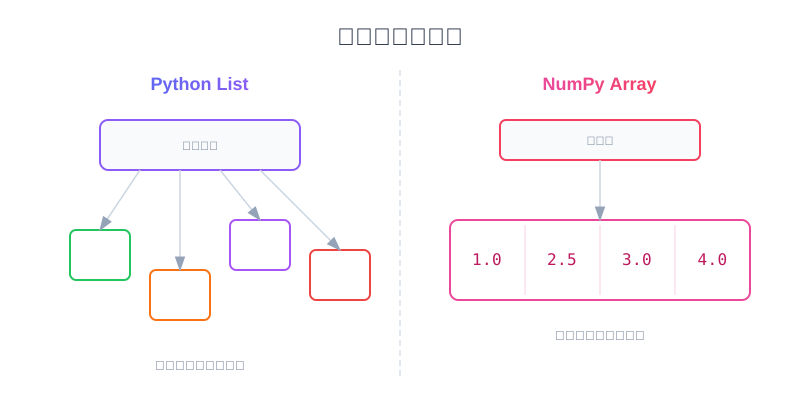
与列表不同,NumPy 的数组中的元素类型是一致的。
In [25]:
# 改变数组的形状
np.array(range(12)).reshape(2, 2, 3)
Out[25]:
array([[[ 0,  1,  2],
        [ 3,  4,  5]],

       [[ 6,  7,  8],
        [ 9, 10, 11]]])
关于 NumPy 数组的更多信息可参见 NumPy 快速入门。
数组的性质
维度是数组的网格中确定唯一位置需要的索引数目,例如一维、二维、三维等。
- 一维数组又叫向量(vector)
- 二维数组又叫矩阵(matrix)
- 三维或更高维的叫张量(tensor)
数组的每一维都有自己的长度,所有维的长度合在一起就是数组的形状。
数组应用:图像处理
通过数组的操作,可以实现更多的图像处理功能。
In [26]:
# 生成一条色带
stripe = np.array([[x, 0, 0] for x in np.linspace(0, 1, 10)]).reshape(1, 10, 3)
plt.imshow(stripe)
Out[26]:
<matplotlib.image.AxesImage at 0x10eb5d090>

In [27]:
# 生成一个颜色矩阵
matrix = np.array([
    [x, y, 0] for x in np.linspace(0, 1, 10)
              for y in np.linspace(0, 1, 10)
]).reshape(10, 10, 3)
plt.imshow(matrix)
Out[27]:
<matplotlib.image.AxesImage at 0x10ebb5450>

In [28]:
# 对图像进行翻转和拼接
picture = np.vstack([      # 竖直拼接
    np.hstack([            # 水平拼接
        head,
        head[:, ::-1],     # 左右翻转
    ]),
    np.hstack([            # 水平拼接
        head[::-1, :],     # 上下翻转
        head[::-1, ::-1],  # 上下、左右都翻转
    ]),
])
plt.imshow(picture)
Out[28]:
<matplotlib.image.AxesImage at 0x10ec0e710>

本讲小结
- 图像是颜色的数组
- 可以使用索引检查和修改数组
- 可以直接创建数组或使用数组推导式